
This how-to walks you through configuring Apple Game Center and starting a session from your game.
Prerequisites
- Unity, Unreal, or Godot SDK installed and configured in your project (not required for REST).
- An Apple developer account with access to the Apple Developer Portal.
Configuration
Install the GameKit Unity Plugin from the Apple Unity Repository.
In the Unity Editor menu, go to Edit > Project Settings…, then Services > Authentication. Set ID Providers to Apple Game Center, then select Add. Enter the Bundle ID from the Apple Developer Console (e.g. com.lootlocker.hector) and select Save.
Follow Unreal's guide to configure your project for Apple Game Center authentication.
Coming soon — this sample hasn't been written yet.
No configuration step is required beyond enabling the platform in Platform Settings — proceed to Start Session below.
Start Session
LootLocker stores the refresh token for the next time the player starts your game, so subsequent sessions can use the simpler refresh flow.
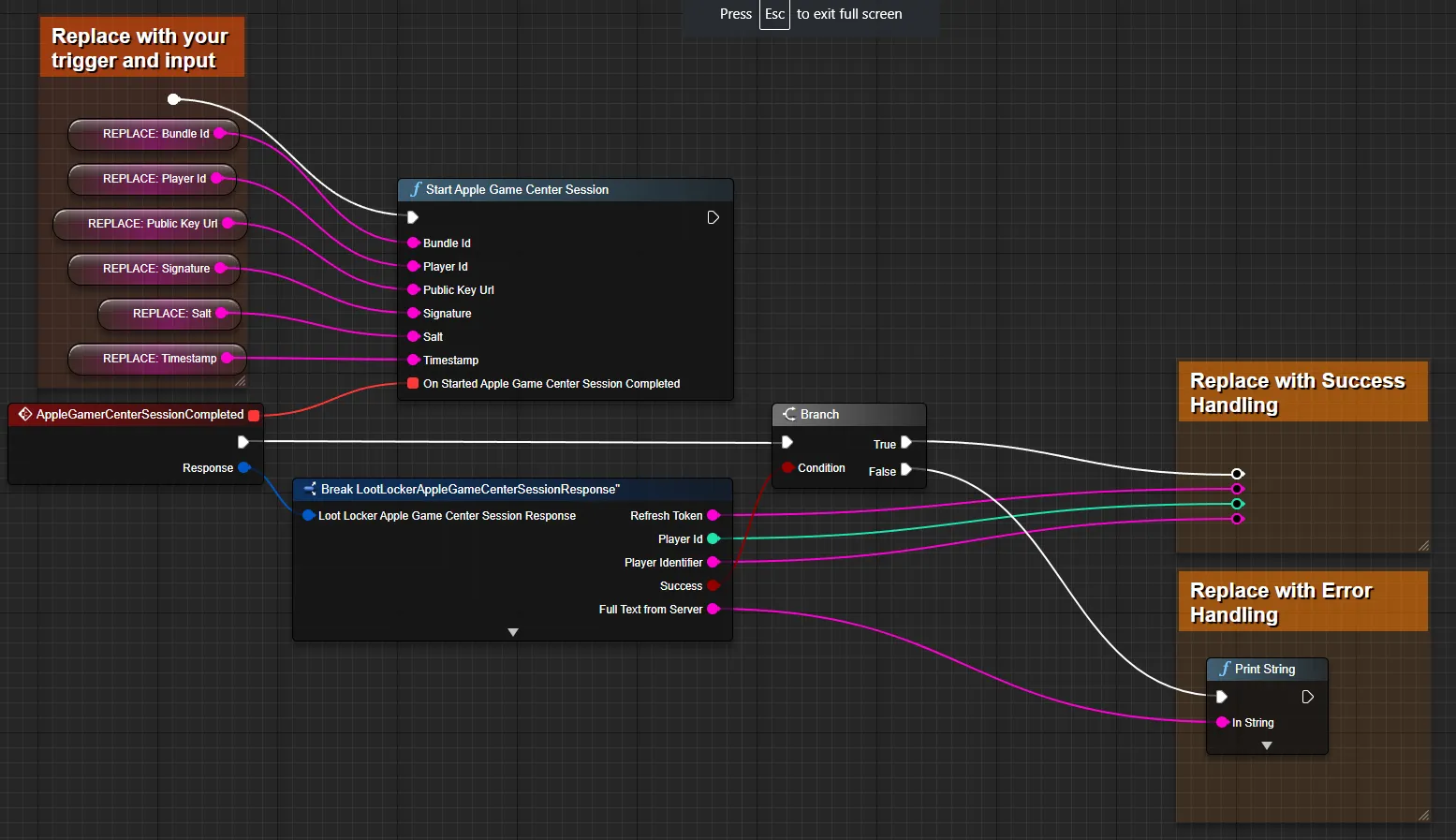
string bundleId;string signature;string playerId;string salt;string publicKeyUrl;string timestamp;
LootLockerSDKManager.StartAppleGameCenterSession(bundleId, playerId, publicKeyUrl, signature, salt, timestamp, (response) =>{
    if (!response.success)    {        Debug.Log("error starting LootLocker session");
        return;     }
     Debug.Log("successfully started LootLocker session");
});
Coming soon — this sample hasn't been written yet.
curl -X POST "https://api.lootlocker.io/game/session/apple/game-center" \ -H "LL-Version: 2021-03-01" \ -H "Content-Type: application/json" \ -d "{\"game_key\": \"your_game_key\", \"bundle_id\": \"apple.bundle.id\", \"player_id\": \"T:_e66eaa73fcd186b1b3e9dc22e19398e4\", \"public_key_url\": \"https://static.gc.apple.com/public-key/gc-prod-9.cer\", \"signature\": \"x+D8j5ulh6/m1O6yW5mKuaX ... G3vEwHLxsYGLjSVn53XVshIFL528=\", \"salt\": \"UIzs/Q==\", \"timestamp\": 1680781286451, \"game_version\": \"1.0.0.0\" }"Example response:
{ "session_token": "eb13a7bf17efg36cb8481a8ds18809c7e85686e6", "player_id": 9358, "public_uid": "J72YP6MS", "player_name": null, "player_created_at": "2023-02-21T15:33:25+00:00", "check_grant_notifications": false, "check_deactivation_notifications": false, "seen_before": false, "refresh_token": "eyJh............................."}Refresh Session
Refresh the session instead of repeating the full StartAppleGameCenterSession() flow, as long as your session token is still valid.
LootLockerSDKManager.RefreshAppleGameCenterSession((response) =>{    if (!response.success)    {        if (response.statusCode == 401) {            // Refresh token has expired, use StartAppleGameCenterSession        }        else {            Debug.Log("error starting LootLocker session");        }
        return;    }
    Debug.Log("session started successfully");});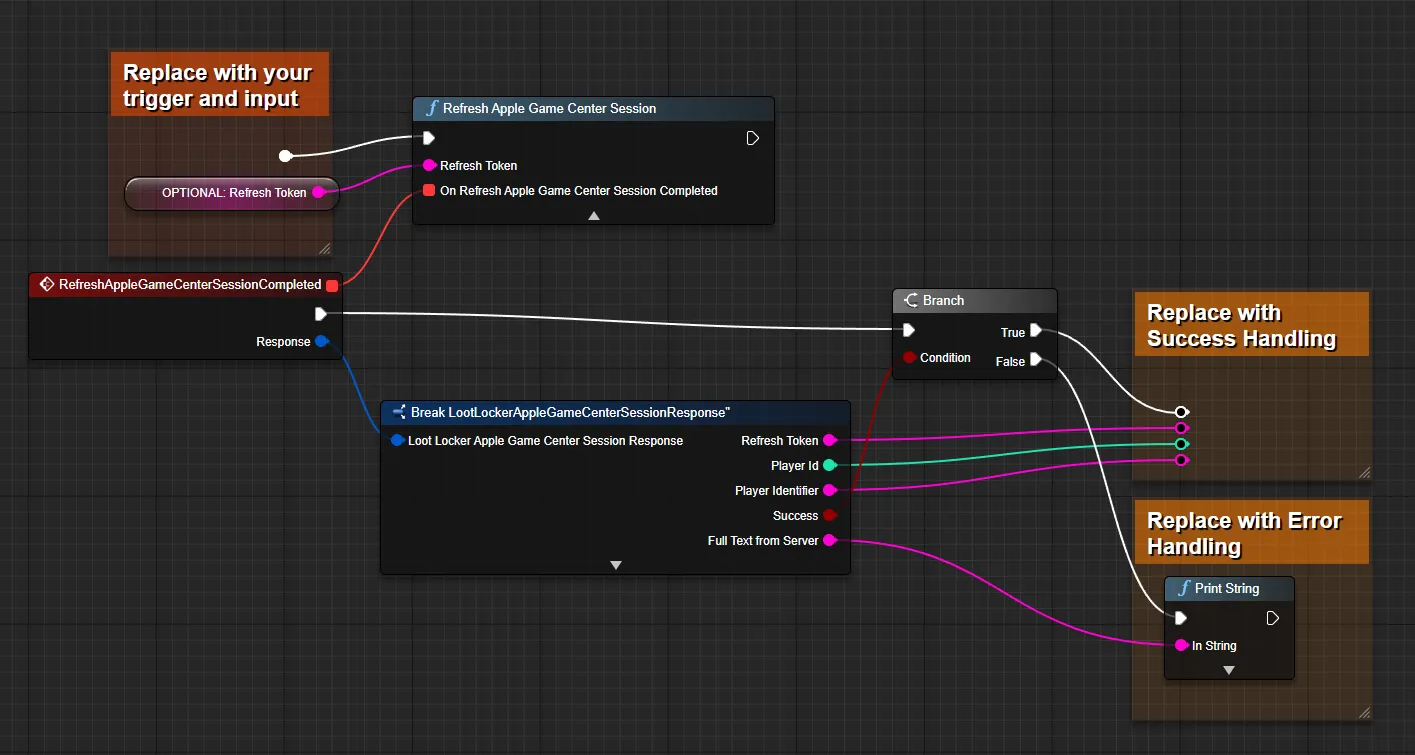
Coming soon — this sample hasn't been written yet.
curl -X POST "https://api.lootlocker.io/game/session/apple/game-center" \ -H "LL-Version: 2021-03-01" \ -H "Content-Type: application/json" \ -d "{\"game_key\": \"your_game_key\", \"refresh_token\": \"748b....\", \"game_version\": \"1.0.0.0\" }"Example response:
{ "session_token": "eb13a7bf17efg36cb8481a8ds18809c7e85686e6", "player_id": 9358, "public_uid": "J72YP6MS", "player_name": null, "player_created_at": "2023-02-21T15:33:25+00:00", "check_grant_notifications": false, "check_deactivation_notifications": false, "seen_before": false, "refresh_token": "eyJh............................."}Conclusion
You've started using LootLocker in your game with Apple Game Center. Next, review LootLocker's full feature set to decide which other features to implement.