
This how-to walks you through authenticating and setting up Google Play Games for your game.
Prerequisites
- Unity, Unreal, or Godot SDK installed and configured in your project (not required for REST).
- An account and game set up in the Google Play Developer Console.
- Play Games Services set up for your game.
Configure Google Play Games
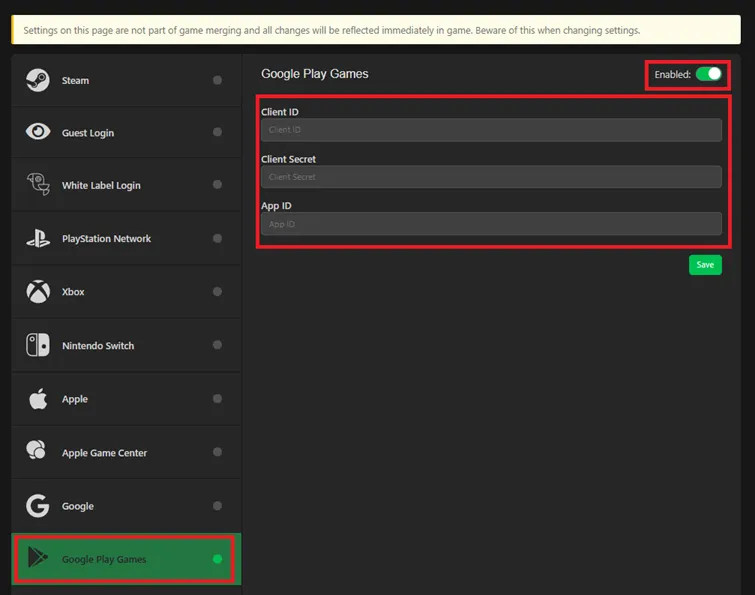
Navigate to the Platform Settings for Google Play Games in the LootLocker Web Console.
Client ID: in the Google Play Developer Console, go to Play Games Services > Setup and management > Configuration, copy the Client ID, and paste it into the Client ID field in the LootLocker Web Console.
Client Secret: go to the Google Cloud Console, navigate to the OAuth2 section of your app, and generate a new secret key (or create a new OAuth client with a Web Client configuration). Store the Client Secret somewhere safe, then paste it into the Client Secret field in the LootLocker Web Console.
App ID: in the Google Play Developer Console, go to Play Games Services > Setup and management > Configuration, copy the Project ID, and paste it into the App ID field in the LootLocker Web Console.
After adding all three credentials, click Save in the LootLocker Web Console. Google Play Games is now fully configured and ready to use in your game.
LootLocker supports Google Play Games v2. If your game is running v1, migrate to v2 first.
Start a Session
When signing in with Google Play Games, add the OPEN_ID scope when requesting the token.
Make sure the Google Play Games v2 SDK is properly installed and set up before adding this code. This is an example — add any error handling your game requires.
using UnityEngine;using GooglePlayGames;using GooglePlayGames.BasicApi;using LootLocker.Requests;using System.Collections.Generic;
public class GoogleSignIn : MonoBehaviour{    // Example of activating Google Play Games and starting a session with LootLocker    public void Start()    {        PlayGamesPlatform.Activate();
        PlayGamesPlatform.Instance.Authenticate((response) =>        {            if (response == GooglePlayGames.BasicApi.SignInStatus.Success)            {                // Add desired scopes for server-side access                List<AuthScope> scopes = new List<AuthScope>                {                    AuthScope.OPEN_ID                };
                PlayGamesPlatform.Instance.RequestServerSideAccess(true, scopes, (google) =>                {                    if (google != null)                    {                        string token = google.GetAuthCode();                        LootLockerSDKManager.StartGooglePlayGamesSession(token, (response) =>                        {                            if (response.success)                            {                                Debug.Log("Successfully started LootLocker session with Google Play Games.");                            }                            else                            {                                Debug.Log("LootLocker Google Play Games session failed: " + response.Error);                            }                        });                    }                    else                    {                        Debug.Log("Google server-side access request failed.");                    }                });            }            else            {                Debug.Log("Google Play Games authentication failed: " + response);            }        });    }}
Coming soon — this sample hasn't been written yet.
Coming soon — this sample hasn't been written yet.
curl --location --request POST 'https://api.lootlocker.com/game/session/google-play-games/v1/login' \--header 'Content-Type: application/json' \--data-raw '{ "game_api_key": "string", "auth_code": "string", "game_version": "string", "optionals": { "timezone": "string", "player_name": "string" }}'Example response:
{ "session_token": "string", "player_identifier": "string", "player_id": 0, "player_name": "string", "player_ulid": "string", "player_created_at": "string", "public_uid": "string", "seen_before": true, "check_grant_notifications": true, "check_deactivation_notifications": true, "check_dlcs": [ "string" ], "success": true}Conclusion
You've configured and enabled Google Play Games. Your game is now set up to integrate any of LootLocker's other features.